5️⃣ Working with Analytics & Visualization Tools: Microsoft Power BI and Power Query with TMVGate JSON or XML Output
Microsoft Power BI and Power Query with TMVGate JSON or XML Output
The TMVGate PSV, JSON or XML output can be used as a data source for Microsoft Power BI and Power Query
Power BI with TMVGate JSON Output
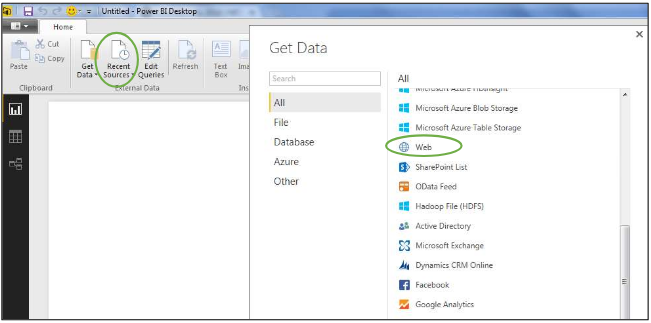
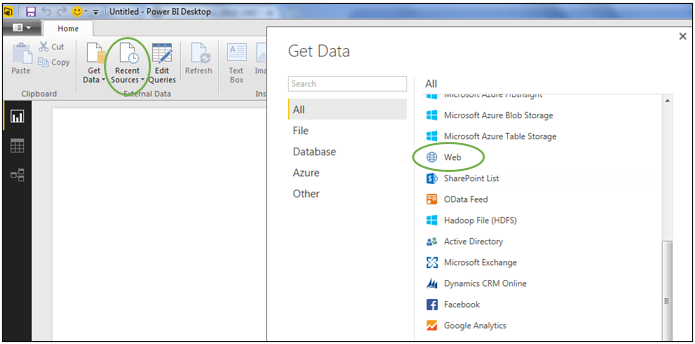
- Open a new Microsoft Power BI Data Source, choose ‘Web’
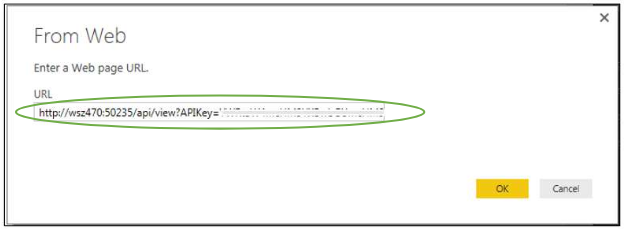
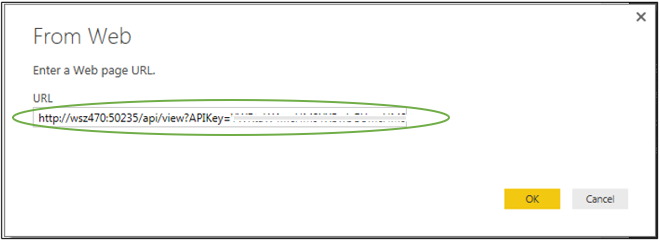
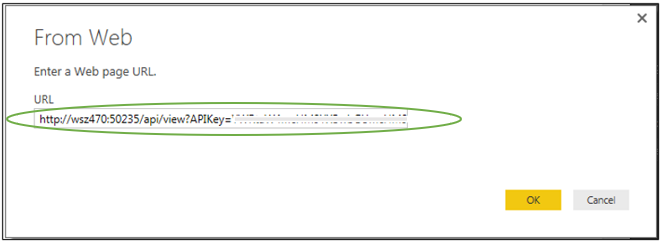
- In the “From Web” dialog box, enter the TMVGate URL generated using JSON format and click OK
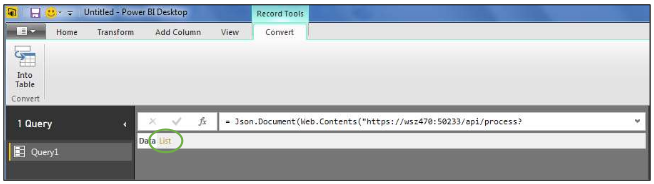
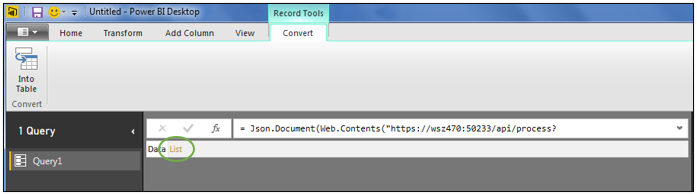
- The screen should look like the following image if Power BI is able to interpret the JSON records. Click on ‘List’ as highlighted
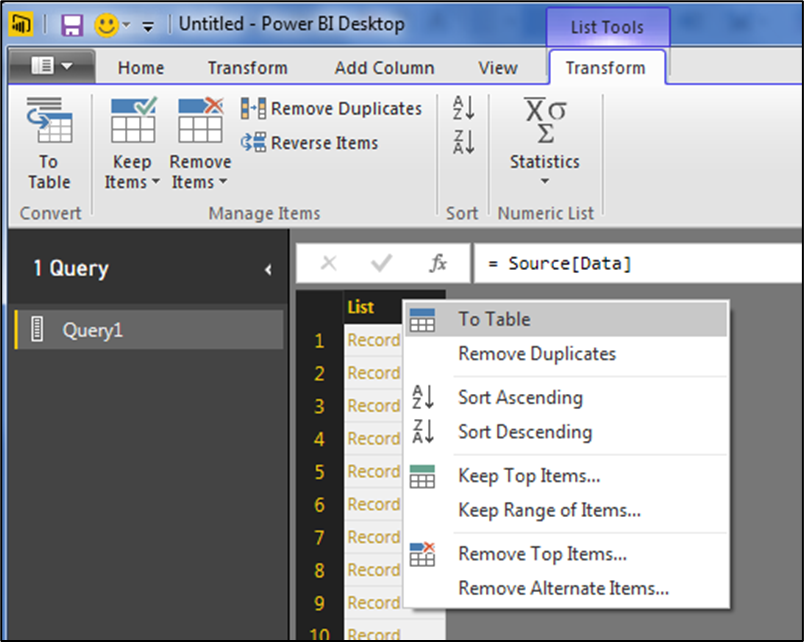
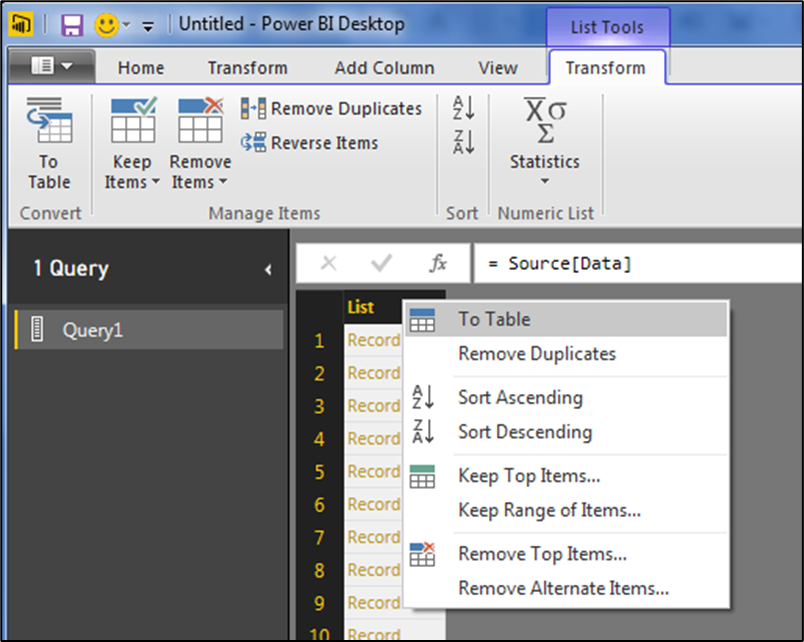
- On the next display, Right Click on the header "List" and choose "To Table"
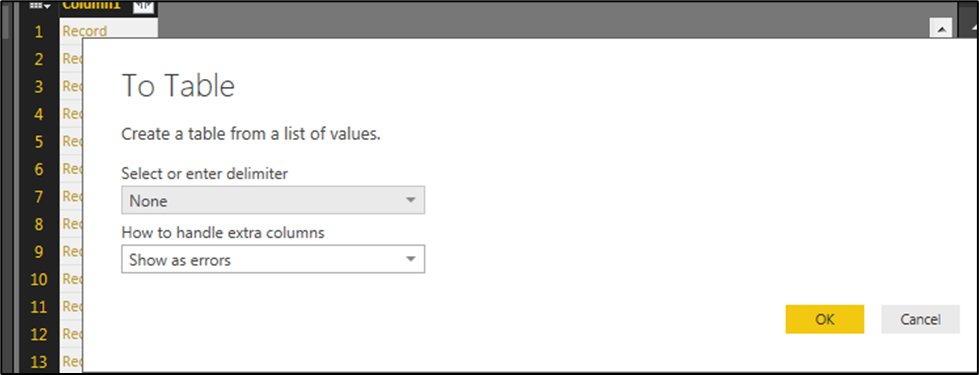
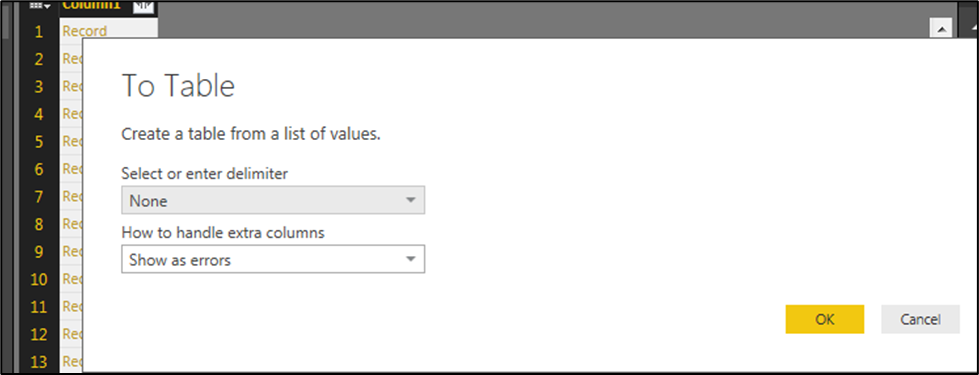
- Click OK on the To Table dialog box
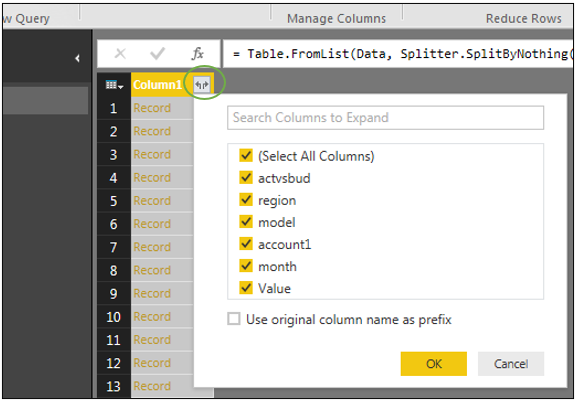
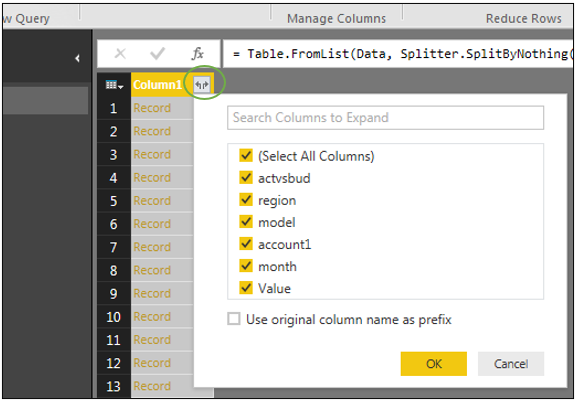
- Notice that there is a small icon next to the Column header as shown. Click on the icon, you can now select the fields that you need as well as the prefix option. Click on OK to use all columns
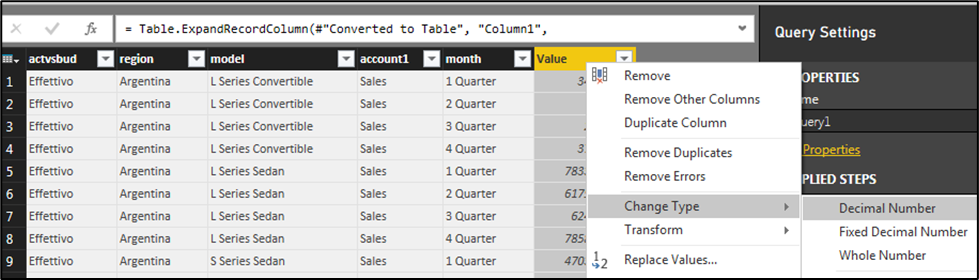
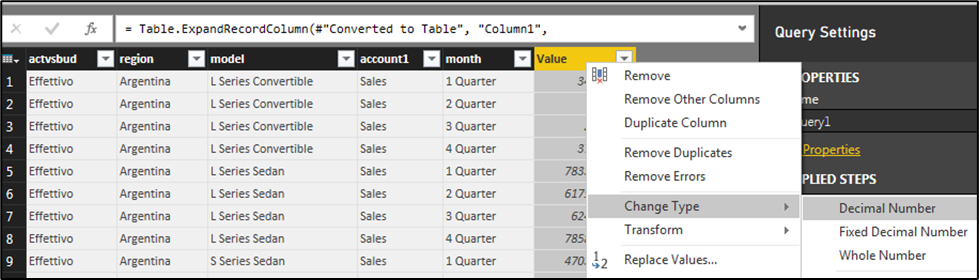
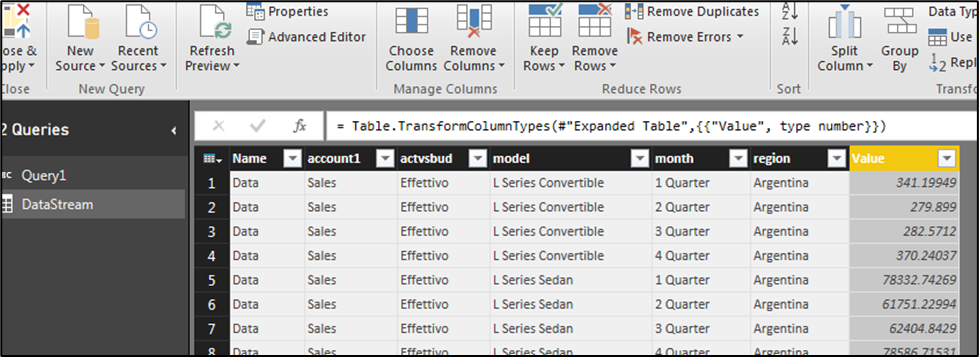
- A preview of records from TMVGate output will be displayed. You should now indicate to Power BI all the numeric fields as numbers or decimals, this is done by Right Clicking on the column header and choosing ‘Change Type’
- Click on ‘Close and Apply’ when all definitions are completed
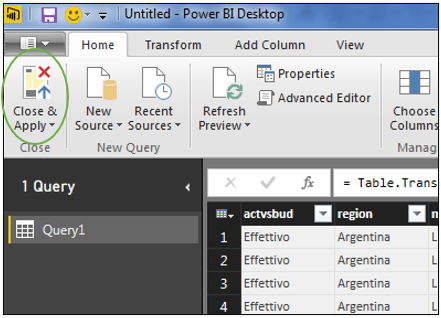
- Power BI will refresh the data and you are ready to start with your report or visualization creation. Whenever you do a Refresh, Power BI will initiate a TMVGate request to refresh the data from TM1 in real time
Power BI with TMVGate XML Output
- Open a new Microsoft Power BI Data Source, choose ‘Web’
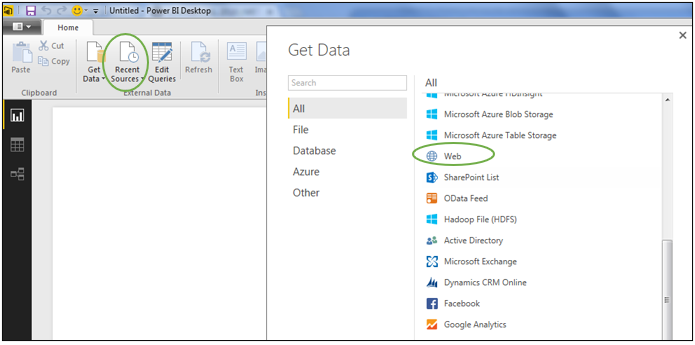
- In the “From Web” dialog box, enter the TMVGate URL generated using JSON format and click OK
- The screen should look like the following image if Power BI is able to interpret the JSON records. Click on ‘List’ as highlighted
- On the next display, Right Click on the header ‘List’ and choose ‘To Table’
- Click OK on the To Table dialog box
- Notice that there is a small icon next to the Column header as shown. Click on the icon, you can now select the fields that you need as well as the prefix option. Click on OK to use all columns
- A preview of records from TMVGate output will be displayed. You should now indicate to Power BI all the numeric fields as numbers or decimals, this is done by Right Clicking on the column header and choosing ‘Change Type’
- Click on ‘Close and Apply’ when all definitions are completed
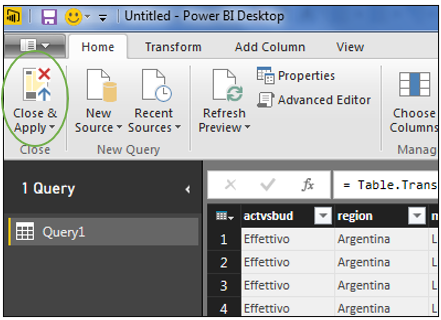
- Power BI will refresh the data and you are ready to start with your report or visualization creation. Whenever you do a Refresh, Power BI will initiate a TMVGate request to refresh the data from TM1 in real time
Power BI with TMVGate XML Output
- Open a new Microsoft Power BI Data Source, choose ‘Web’
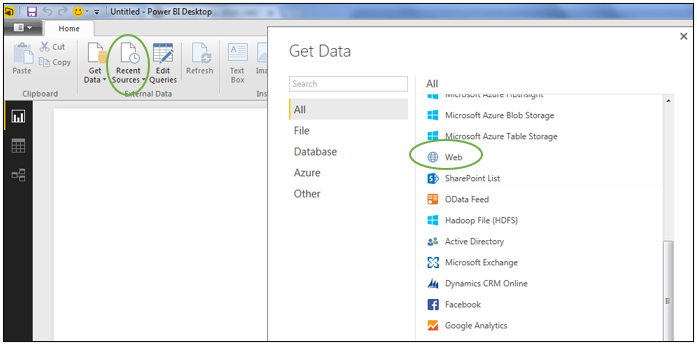
- In the From Web dialog box, enter the TMVGate URL generated using XML format and click OK
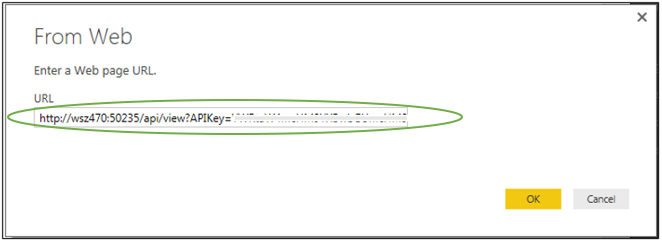
- The screen should look like the following image if Power BI is able to interpret the XML records, click on the icon beside the Table. You can now select the fields that you need as well as the prefix option. Click on OK to use all columns
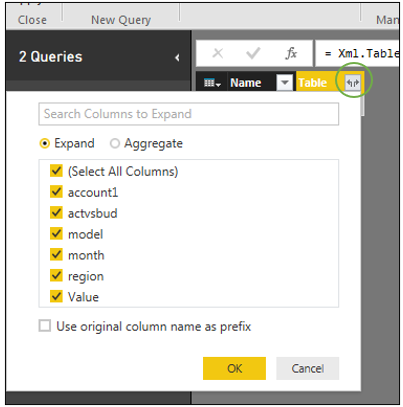
- The remainder of the steps will be the same as the JSON format in which you can change the numeric field type. Proceed with the loading and start creating your reports and visualization
Power BI with TMVGate PSV or TXT Output
- Open a new Microsoft Power BI Data Source, choose ‘Web’
- In the From Web dialog box, enter the TMVGate URL generated using PSV or TXT format and click OK
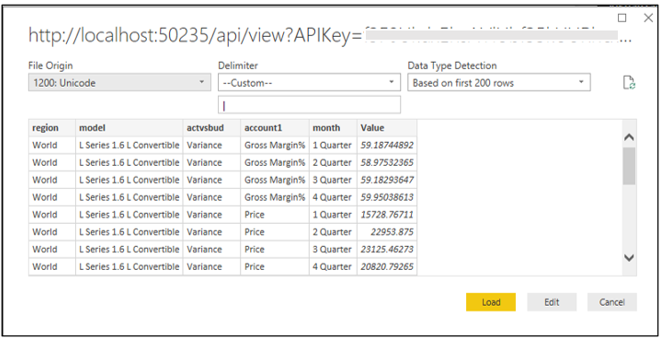
- The screen should look like the following image if Power BI is able to interpret the PSV or TXT records, click on Load to start creating your reports and visualization