2️⃣ Installation
Step 1️⃣ Locate the MSI folder, right-click on the TMVGateSetup.msi file and run it as an administrator
Depending on your Windows security settings, you may receive a security warning:
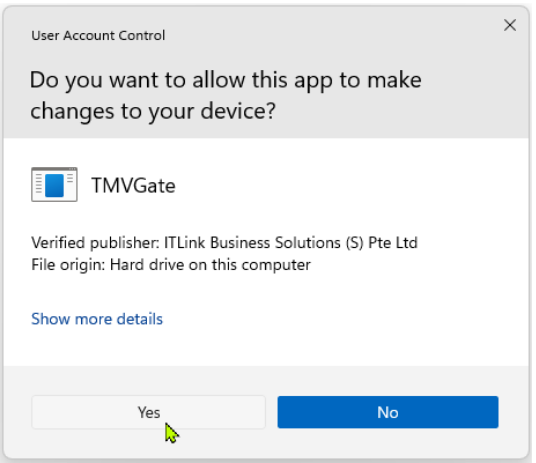
Note that TMVGate screenshots are shown for illustration purposes
Click “Yes” to continue with TMVGate installation
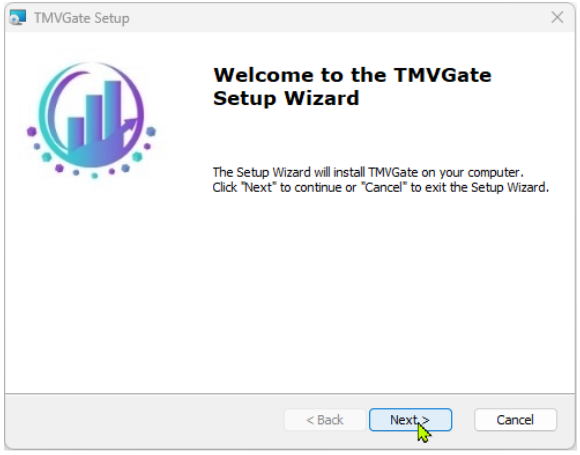
Step 2️⃣ Click “Next” to review the License Agreement or “Cancel” to exit the wizard
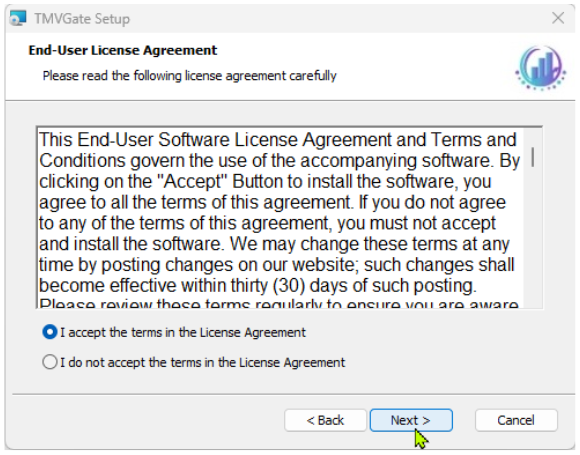
Step 3️⃣ Review the License Agreement, and click on “I Agree”, and “Next” to enter the License Key
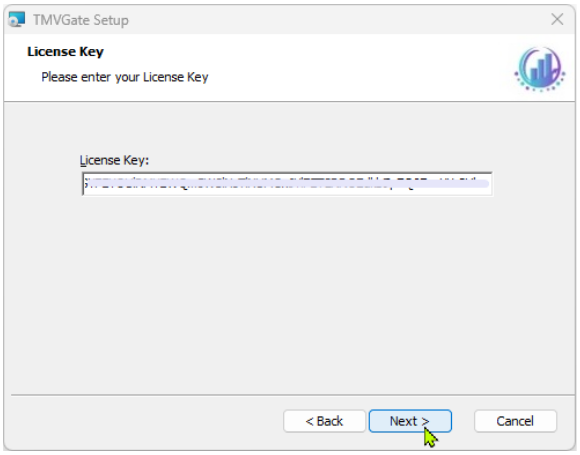
Step 4️⃣ Enter the License Key and “Next” to select the installation folder
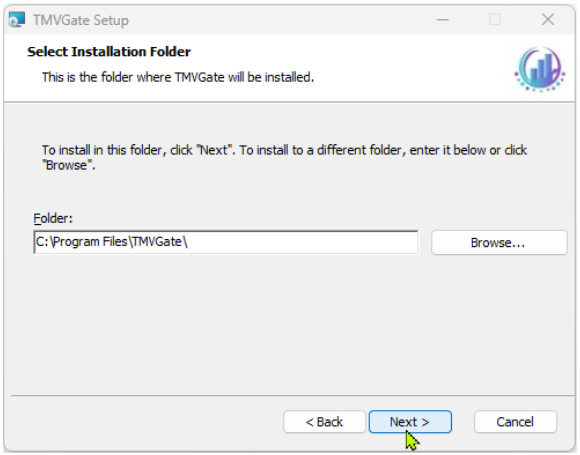
Step 5️⃣ By default, the TMVGate application folder will be created in the Program Files folder. All TMVGate executables and configuration files will be installed to this application folder. You may overwrite the default value by specifying a different folder in a local drive. Click “Next” to proceed to the Application Configuration setup
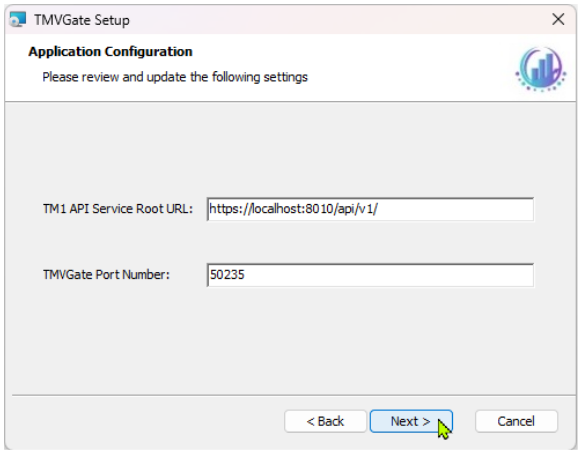
Step 6️⃣ Update the TM1 API Service Root URL address with the actual IP address of the TM1 Server. The TMVGate Port Number specifies the TCP Port that will be used by TMVGate for receiving requests.
Please note the following:
- The TM1 API Service Root URL address and TMVGate Port Number can be reassigned after installation via the “TM1APIServiceRootURL” and "BaseAddress” key settings in the TMVGate.json file.
- For any changes of key settings in TMVGate.json to take effect, the TMVGate windows services must be restarted.
- Port Number must be unique for each application.
After updating or keeping the default values for the application configuration, click “Next” to continue.
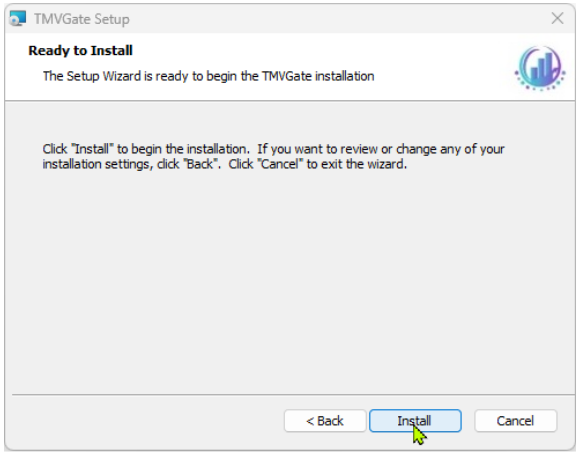
Step 7️⃣ Click “Install” to begin the installation or “Cancel” to exit the wizard
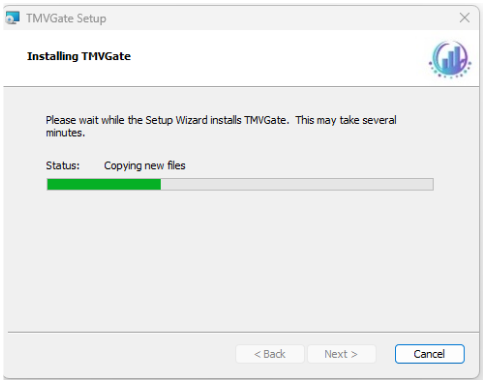
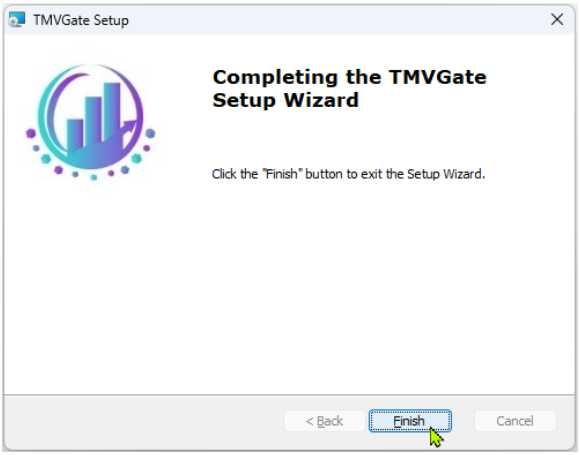
Step 8️⃣ Click “Finish” to complete TMVGate installation
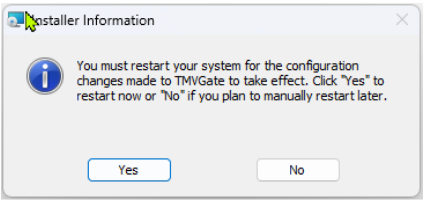
Click “Yes” to restart the computer for TMVGate configuration to take effect